
Quickstart
Try out the API without coding
Use the Blue Button API test client to explore data returned from API endpoints without coding.
Log out of the sandbox if you are currently logged in. This ensures the test client functions correctly.
- Go to the Blue Button API test client.
- Click Get a Sample Authorization Token (v3).
- Authorize by clicking Authorize as a Beneficiary or Authorize as a Beneficiary (Spanish).
- Sign in to Medicare.gov using synthetic user account credentials.
- Click Share.
- Click any of the links in the API Calls section of the page to use the resulting access token to make various API calls.
Sample applications
Use our sample applications to see how the API’s basic features work.
SDKs
Our Node and Python SDKs provide methods to build API calls and manage token refreshes.
Working with Blue Button
Create a Sandbox Account
Use sandbox credentials to develop and test your Blue Button application with the provided synthetic data.
Visit the Sandbox.
Get Production Access
Follow the steps on the Production Access page to get access to live data in the production environment.
Register an application in the developer Sandbox
- Go to the Sandbox Dashboard. Create an account if you don’t already have one.
- Click Add an Application.
Enter application details
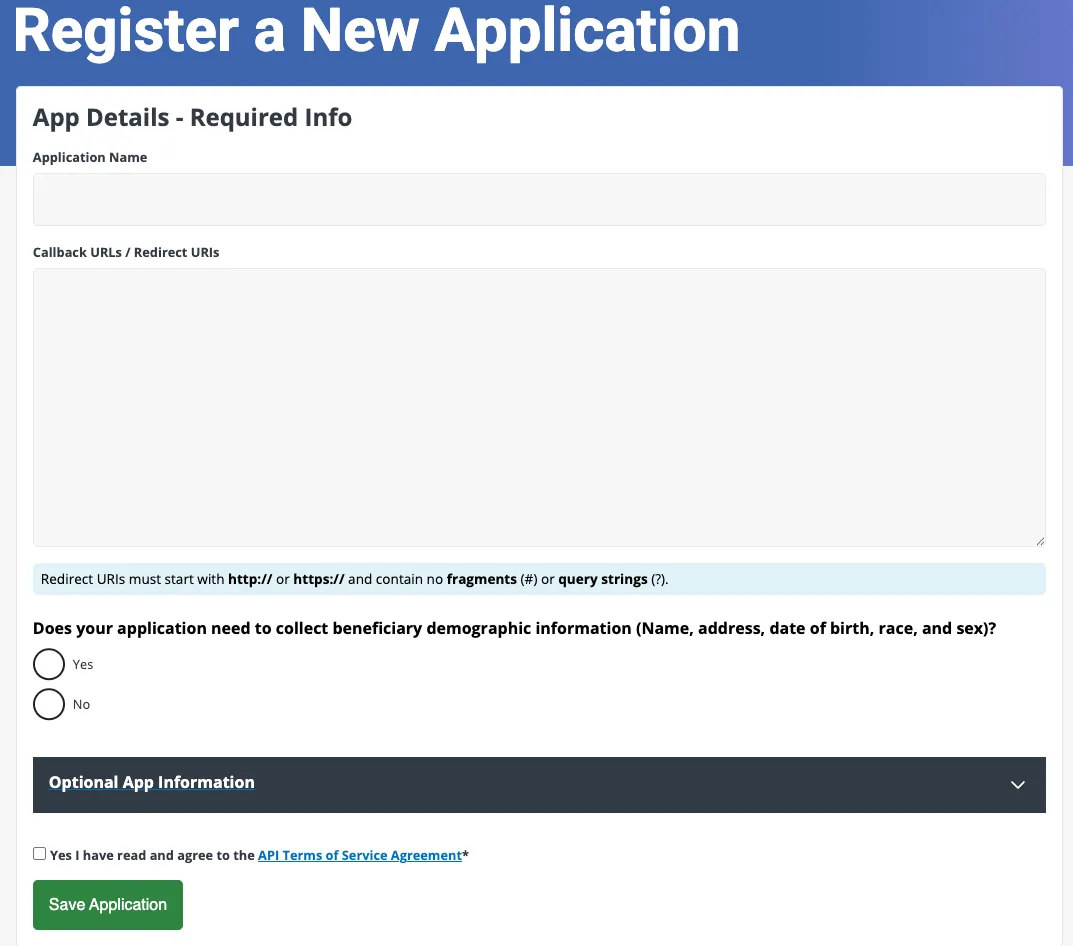
1. Application Name
- The name of the Application you are connecting to the Blue Button API.
2. Callback URLs / Redirect URIs
- This is an API endpoint that receives the callback after a user successfully authorizes your application to access their Medicare data. To enter multiple URIs in the Callback URLs / Redirect URIs field, separate each entry with a space or a new line.
Sample format:
URIscheme://[sub-domain.]domain_name[:port]/path3. Save Application.
After you register your Sandbox application, you’ll get a Client ID and Client Secret.
- Client ID: an alphanumeric string that identifies your application. Use this in your code when you call the Blue Button API.
- Client Secret: an alphanumeric string used by your application to authenticate with the Blue Button server.
Note: Client credentials from the developer Sandbox only work in the Sandbox environment. To get production credentials, complete the production access requirements and get approved.
Test the API with Postman
Once you’ve created a Blue Button sandbox application, you can start making requests. The instructions in this section will get you up and running quickly with Postman or cURL.
Postman
Postman is a widely used API client. To use Blue Button API sandbox calls in Postman:
- Configure your Sandbox application to work with Postman:
- Log in to the Blue Button Sandbox
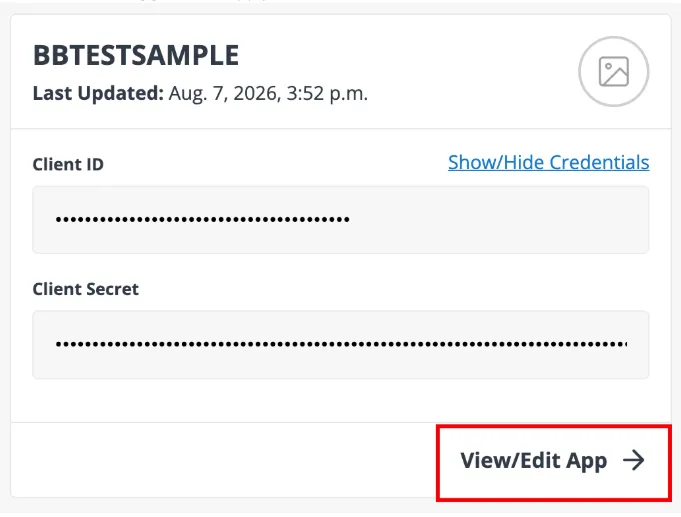
- Click View/Edit App for the app you want to use with Postman.
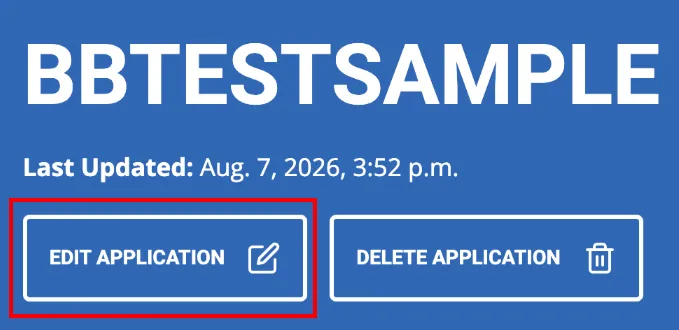
- Click Edit Application.
- Enter the following URLs into the Callback URLs / Redirect URIs field; separate each entry with a space or a new line (carriage return), and click Save Application
https://oauth.pstmn.io/v1/callbackhttps://oauth.pstmn.io/v1/browser-callback- Download the Blue Button API Sandbox Postman collection. Import it into the Postman desktop or web application.
- To import the collection, either click the Import button in Postman and select the collection file, or drag the file into the Postman window.
- Select the top-level folder in the collection, CMS BlueButton API Sandbox.
- Select the Variables tab.
- Copy your application’s Client ID and Client Secret from your Sandbox account. Paste both into the Value field for the Postman variables
clientIdandclientSecret. - After copying and pasting your API credentials, log out of the Blue Button Sandbox in your browser.
NOTE: Being logged in to the sandbox can cause authorization errors in Postman.

- Select the Authorization tab.
- Verify the following settings:
- Grant type: Authorization Code (With PKCE)
- Code Challenge Method: SHA-256
- State: any random alphanumeric string at least 16 characters long (
example_string_goes_here)
- At the bottom of the Authorization tab, click Get New Access Token.
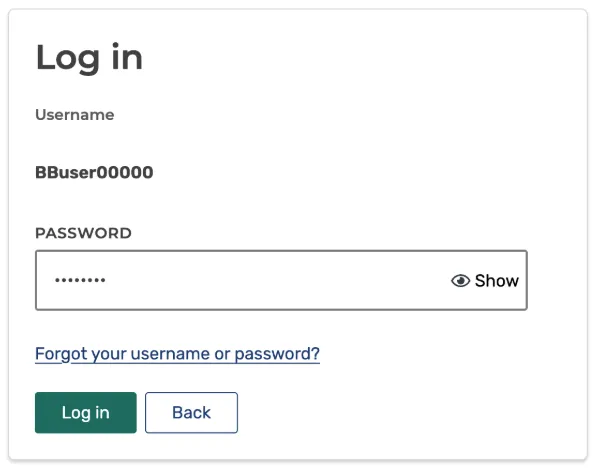
- A Medicare.gov login window will open. Enter the username and password for a synthetic sandbox user account. For example, user = “BBUser00000” and password = “PW00000!”. Then, click Log in.
- Click Share.
- When the Manage Access Tokens window appears, click Use Token. You can also name your token.
- Make any Blue Button API calls from the endpoints listed under the Patient, Explanation of Benefit, and Coverage folders. For example, to retrieve Explanation of Benefits information for the authenticated patient:
- Select the Explanation of Benefits folder
- Select GET Search Explanation of Benefits.
- Click Send.
- The API returns a FHIR bundle with Explanation of Benefits information.
cURL
You can also call the Blue Button sandbox with cURL, a popular command-line HTTP client.
First, obtain an access token. To test using your sandbox application, you can use Postman to retrieve a token with your client ID and secret, as shown in the previous section.
Alternately, you can get a sample authorization token from the Blue Button Test Client. To do this, follow steps 1-6 in the Try out the API without coding section. After completing step 6, a new page will open.
- Copy the access token from the JSON shown under Step 1: Sample Authorization for use in your cURL command.

- Once you have a token, you can make API calls with cURL. For example, the command below fetches Explanation of Benefits information for the authenticated patient. Remember to replace
YOUR_ACCESS_TOKENwith your actual token:
curl --location "https://sandbox.bluebutton.cms.gov/v3/fhir/ExplanationOfBenefit/" \ --header "Accept: application/json" \ --header "Authorization: Bearer YOUR_ACCESS_TOKEN"Technical specifications and standards
The Blue Button API is a RESTful API, based on:
The Blue Button API
- Supplies data in JSON format.
- Uses the OAuth 2.0 protocol for authorization.